The short version
- Show the payment icons you really accept, using your theme's built-in setting.
- Turn your real return window and shipping terms into policy badges, with the actual numbers in them.
- Put badges under the Add to cart button and next to the checkout button on the cart page.
- Skip security seals you do not license, and skip any claim you could not defend in a support email.
- Do not plan on badges inside checkout: on most Shopify plans that page cannot be edited with theme code.
What are trust badges?
Trust badges are small visual signals on an online store that tell a shopper, at a glance, that paying is safe, that the policies are fair and that other people have bought there before. They exist because an online shopper cannot pick up the product, meet the owner or walk back in to return something. A badge is a shortcut that answers one of those worries in a few words, right where the shopper is deciding.
On a Shopify store the term covers anything from a row of Visa and PayPal logos in the footer to a "30-day returns" line under the Add to cart button. Shopify's own blog post on types of trust badges groups them into security, payment, endorsement, policy and media mention badges. That list is a fair map, but it treats all five as equally worth adding. In practice they are not, and the rest of this guide explains why.
Trust badges icons: the four kinds that matter
Trust badges icons on a typical store come in four practical kinds: payment icons, policy badges, social proof badges and third-party seals.
- Payment icons: the logos of the cards and wallets you accept, such as Visa, Mastercard, American Express, PayPal, Apple Pay and Shop Pay.
- Policy badges: an icon plus a short line about your returns, shipping, warranty or guarantee.
- Social proof badges: your review count and average rating, or a real press mention you can link to.
- Third-party seals: logos from a security company or an accrediting body, such as the Better Business Bureau, that you earn through an application or a paid service.
The first three are things you control and can state truthfully today. The fourth depends on someone else vouching for you, and that is where most of the trouble with trust badges starts.
Do trust badges on Shopify actually work?
Trust badges on Shopify work when they answer a real doubt with a true, specific fact, and they do very little when they are decoration. The most useful public evidence is not a study of badges at all. It is research into why shoppers leave a store without buying.
Baymard Institute, which runs large ecommerce usability studies, publishes a running list of cart abandonment rate statistics and reasons from its survey of US online shoppers. Once you set aside the people who were only browsing, the reasons for abandoning include:
- 40% left because extra costs such as shipping, tax and fees were too high.
- 19% left because they did not trust the site with their credit card information.
- 13% left because the returns policy was not satisfactory.
- 9% left because there were not enough payment methods.
Baymard also puts the average documented cart abandonment rate at 70.22%, the average of 50 published studies. Read the list again with a store owner's eye. Nearly one in five abandoning shoppers named trust in card handling. Others named returns, and others named payment options. Each of those is a question a badge can answer on the product page, before the shopper ever reaches checkout. Even the biggest reason, surprise costs, is something a badge can address if you state your shipping terms up front.
What the research does not show is that a badge on its own adds a fixed percentage to your sales. You will find articles quoting large conversion lifts from adding one seal. We could not trace those numbers to a study we could check, so we do not repeat them here. The honest position is simpler: badges help when they remove a doubt your shoppers really have, and the only way to know how much they help your store is to add them and watch your own add-to-cart and checkout rates over a few weeks.
The best trust badges for a Shopify store
The best trust badges for a Shopify store state something true and specific that the shopper cares about: how they can pay, how long they have to return an item, what shipping costs and how many people have reviewed you. Specific beats general every time. "Free returns within 30 days" tells a shopper something they can act on. "Hassle-free shopping" tells them nothing.
Shopify payment icons
Shopify payment icons are the logos of the cards and wallets your store really accepts, and they are the easiest trust badge to get right because Shopify can generate them for you. Shopify's Liquid template language has a payment_type_svg_tag filter that outputs an icon for each payment type enabled on the store, read from shop.enabled_payment_types. Most themes use it in the footer, so the icons change when you turn a payment method on or off in your settings.
That matters for two reasons. It answers the "not enough payment methods" doubt from Baymard's list before checkout, not during it. And it keeps you honest: if you paste in an icon for a method you do not accept, the shopper finds out only when they try to pay, which is the worst possible moment to disappoint them. If you sell into a market where a local payment method matters, make sure it is turned on so its icon appears. Keep the row short; five to seven icons is usually plenty.
Return and shipping trust badges with your real terms
Return and shipping trust badges work best when they quote your actual policy: the number of days, the cost and the conditions. Compare these pairs:
- Vague: "Easy returns". Specific: "30-day returns, free return label".
- Vague: "Fast shipping". Specific: "Free US shipping over $50, ships in 1 to 2 business days".
- Vague: "Satisfaction guaranteed". Specific: "Full refund if it arrives damaged".
The specific versions speak directly to the two Baymard reasons that are about policy: surprise costs and an unsatisfactory returns policy. They are also promises you have to keep, so write each badge from your policy page, not from what sounds good. When your policy changes, change the badge the same day. A badge that says 60 days while the policy page says 14 is worse than no badge, because the shopper who reads both now trusts neither.
If your returns are not generous, do not dress them up. Lead with what is genuinely strong about your store instead, such as quick dispatch, a real warranty or free local pickup.
Review count trust badges
Review count trust badges show how many reviews a product or store has and the average rating, and they carry weight because the claim comes from other shoppers rather than from you. Keep them live: pull the number from your review app, not a figure typed in once and left alone. A product with 12 reviews averaging 4.6 stars is more believable than a sitewide "5 stars" badge with no count at all. If you do not have reviews yet, leave this badge out until you do.
Website trust badges that backfire
Website trust badges backfire when they claim something the store cannot prove, because a shopper who doubts one badge starts doubting the whole page. These are the ones to skip:
- Security seal logos you do not license. A McAfee or Norton style logo copied from an image search and pasted into a theme is not a seal. Real verification seals come from a service that checks your site and links the logo to a live verification page. A copied logo has neither, and a shopper who clicks it finds nothing. Using another company's trademark without permission can also cause problems with that company.
- "100% secure checkout" graphics. Shopify already serves stores over an encrypted connection: Shopify's help center on secure connections and TLS certificates says TLS certificates are provided for free for all domains added to Shopify. The padlock in the browser's address bar is a signal shoppers can check themselves. A homemade padlock graphic adds nothing that is not already true, and the cheap ones look like they came from a template.
- Generic claims you do not meet. "Free delivery" on a store that charges for shipping, or "24/7 support" from a one-person shop.
- Too many badges in one place. A wall of ten badges reads as nervous. Three or four that each answer a different doubt do more.
- Endorsements you cannot link to. "As seen in" press logos and accreditation seals are only worth showing if you can point to the actual article or listing.
Why fake security seals are worse than no trust badges
Fake security seals are worse than no trust badges because they ask the shopper to believe a third party checked your store when nobody did. The shoppers most likely to notice are the careful ones, and careful shoppers are exactly who trust badges are meant to win over. They check whether the seal links anywhere. They notice when the same seal appears on a dozen low-quality stores. Once they suspect one claim, every other badge on the page loses value, including the true ones. If you want a third-party seal, buy the real service and use the code it gives you. Otherwise, let your real policies and real reviews do the work.
Where to place e-commerce trust badges
E-commerce trust badges should sit where the shopper is making a decision: directly under the Add to cart button, on the cart page next to the checkout button, and in the footer. A badge on the About page or at the bottom of the homepage is seen by few people, at the wrong moment.
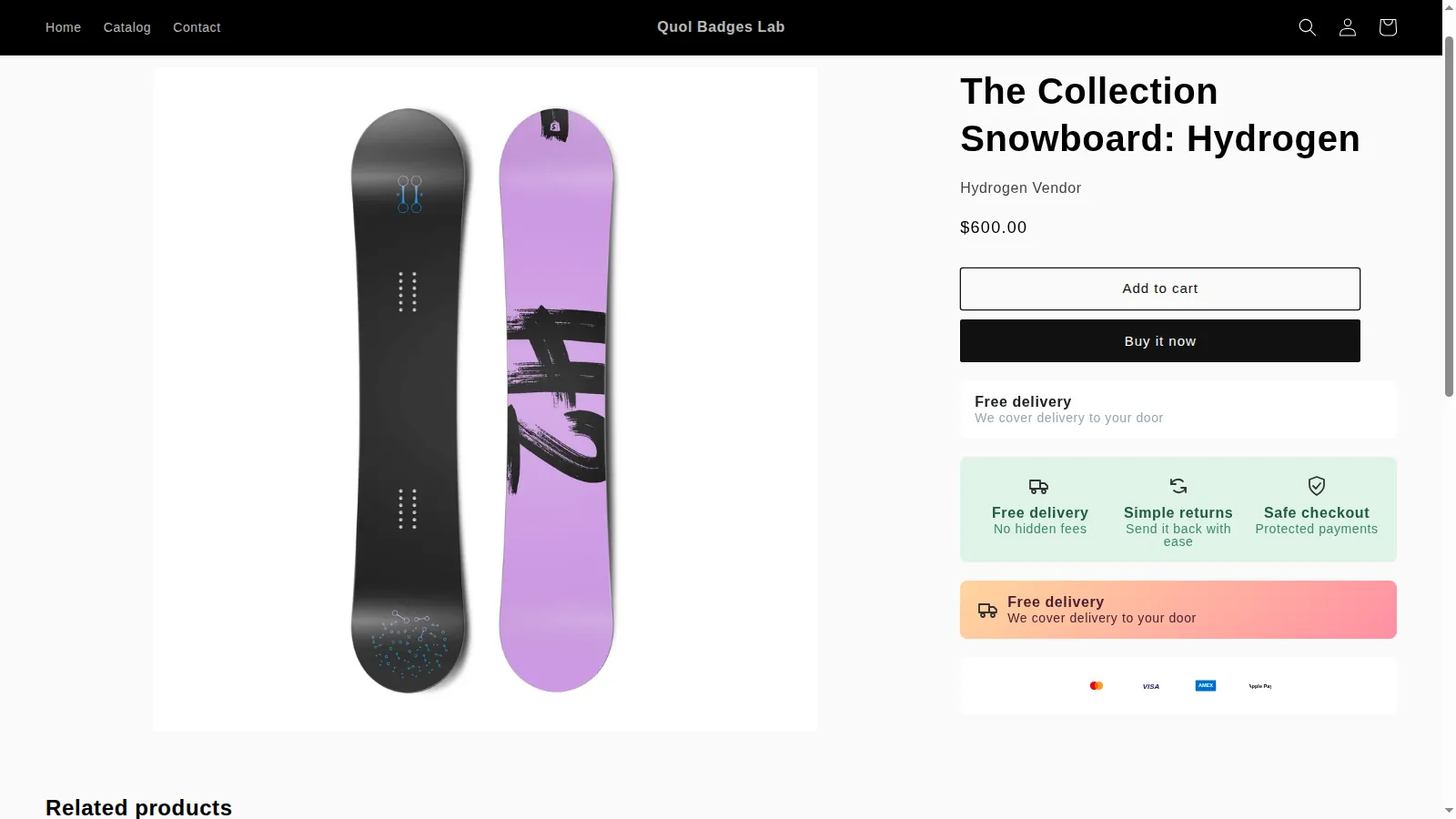
Trust badges under the Add to cart button
Trust badges under the Add to cart button are the most valuable placement, because that is where a shopper weighs price, delivery and risk in one glance. Put your strongest policy badges here, usually shipping terms and returns, and add a short row of payment icons if there is room. Keep the block compact so it does not push the product description far down the page.
Check this block on a phone before anything else, because that is where many of your shoppers will see it first. The badges should stack cleanly, the text should be readable without zooming, and the Add to cart button should still be visible without scrolling past a stack of badges.
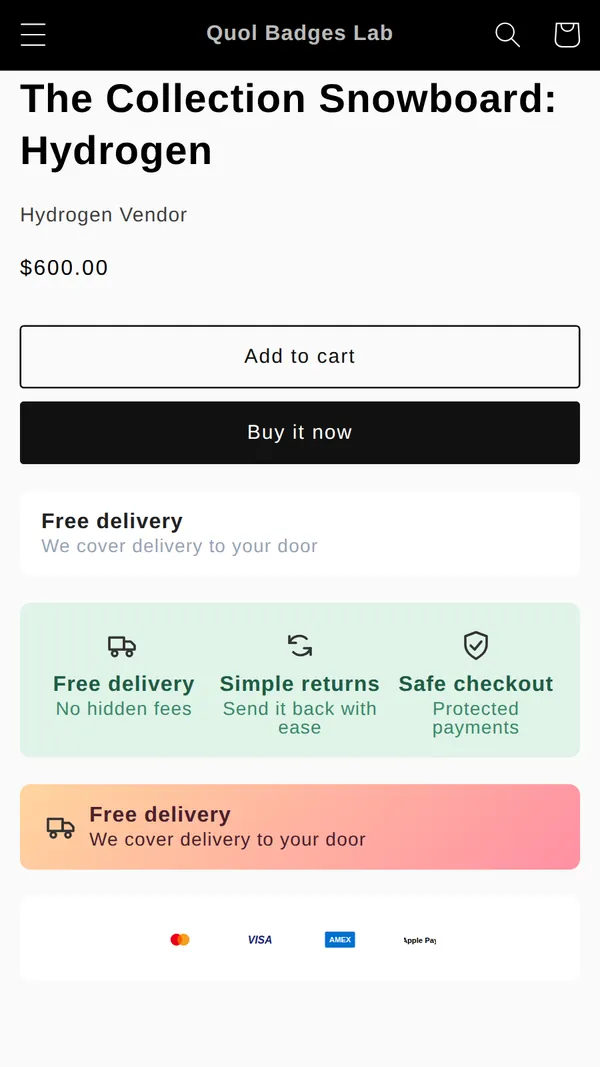
Trust badges on the cart page and cart drawer
Trust badges on the cart page and in the cart drawer reach the shopper at the last step before checkout, when doubts about total cost and returns tend to come back. One line such as "Free returns within 30 days" near the checkout button, plus your payment icons, is enough. Because most stores cannot add their own content inside checkout (see the next section), the cart is the last page where your badges can appear before the shopper pays.
Trust badges in the footer
Trust badges in the footer usually means a row of payment icons that appears on every page of the store. On its own it has a small effect, but it costs nothing, it backs up the other placements, and it confirms what you accept on every page, including blog posts and collection pages where shoppers often arrive first.
Can you add trust badges to Shopify checkout?
On most Shopify plans you cannot add trust badges to Shopify checkout with theme code, so trust badges belong on your product and cart pages instead. This surprises many store owners, partly because older tutorials still tell you to edit a checkout template.
Here is what Shopify's own documentation says, checked for this guide:
- The checkout.liquid layout was only ever available to Shopify Plus merchants, and Shopify now marks it as deprecated and unsupported for the information, shipping and payment steps.
- Shopify's help center page on customizing checkout configurations says stores on the Basic plan or higher can change checkout branding: a logo, a background color or image, colors and fonts.
- The same page says apps that customize the information, shipping and payment pages are a Shopify Plus feature. On other plans, eligible apps can customize the thank you and order status pages, which the shopper sees after paying.
- Shopify's developer page on technologies for customizing checkout lists checkout UI extensions as available on Shopify Plus, with thank you and order status extensions available on all plans except Shopify Starter.
In practice, unless you are on Shopify Plus, custom badges in the checkout steps are off the table. That is less of a loss than it sounds. Shopify's checkout already lists the payment methods you offer, carries your logo and colors, and is served over an encrypted connection. The trust work happens before the shopper gets there, which is why the product page and the cart matter so much. If you are on Plus, a checkout UI extension can add a short policy line near the payment step, and the same rules apply: real terms, no copied seals.
How to add trust badges to Shopify
You can add trust badges to Shopify in two ways without editing theme code: turn on your theme's built-in payment icons, then use a trust badge app for policy badges under Add to cart and on the cart. Start with the first, because it is free and takes about a minute.
Step 1: Turn on your theme's Shopify payment icons
To turn on Shopify payment icons in most themes, go to Online Store, then Themes, click Customize, select the footer section and switch on the payment icons setting. In Shopify's free Dawn theme the setting is called "Payment method icons" and it is on by default. The icons come from the payment methods enabled on your store, so if one is missing, check your payment settings rather than uploading an image. If your theme has no such setting, ask the theme developer before pasting code from a forum into your theme files.
Step 2: Add free trust badges to Shopify with an app
Free trust badges for Shopify are available from several apps in the Shopify App Store, and many offer a free plan that covers a small store. Look for an app that installs through a theme app extension, which shows up as an app embed or app block in the theme editor. That means the app does not change your theme code, and removing it leaves your theme as it was.
Disclosure: we make one of these apps. Quol Badges, our trust badge app for Shopify, is built by Quolapps. Here is exactly what it does, so you can compare it fairly with the alternatives:
- Four layouts: a single banner, an icon grid, compact icons and a row of payment logos.
- Badges show under the Add to cart button. On the Pro plan they can also appear on the cart page and inside the cart drawer.
- Badges load through a theme app embed, so no theme code is edited.
- Free plan: 2 published badges and up to 5,000 badge views a month.
- Pro plan: $1.99 a month, with a 14-day free trial.
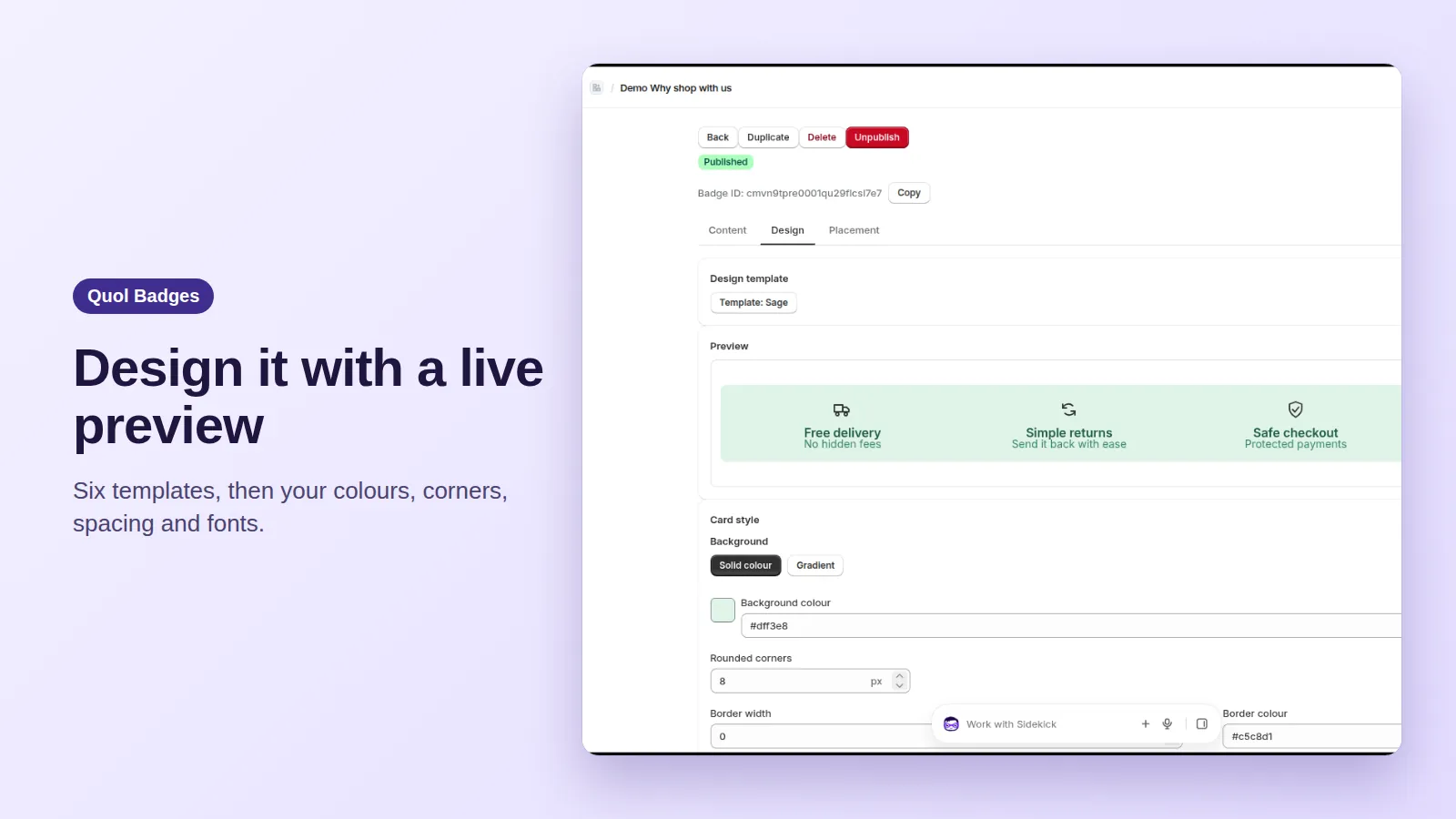
Other trust badge apps exist, with different layouts, icon libraries, features and prices, and one of them may suit your store better. Search "trust badges" in the Shopify App Store, read the most recent reviews, and try a free plan before you pay for anything.
What to check before you install a trust badges app
Before you install any trust badges app, check four things: that it uses a theme app embed or app block, that its free plan limits match your traffic, that it lets you write your own badge text, and that it does not slow down your product page. After it is installed:
- write each badge from your real policy page, with the numbers;
- preview every placement on a phone;
- remove any badge whose claim you would not defend in a reply to a customer.
Trust badges for websites outside Shopify
Trust badges for websites built on WooCommerce, BigCommerce, Squarespace or custom code follow the same rules as on Shopify: show the payment methods you take, state your real policies, show real reviews, and place them next to the buy and checkout buttons. The platform changes how you add them, not which ones work. The main difference is that on a platform where you build the checkout page yourself, you can add a short policy line there too, and you are responsible for making sure every page is served over HTTPS.
A trust badges checklist for your store
Use this trust badges checklist to review your store in about ten minutes:
- Payment icons in the footer match the methods you really accept.
- Under Add to cart: your real shipping terms and return window, with numbers.
- Cart page or cart drawer: one policy line and payment icons near the checkout button.
- A review count only if it is live and real.
- No security seal you do not license and no "100% secure" graphics.
- No more than three or four badges in any one spot.
- Every number on a badge matches your policy page.
- Every placement looks right on a phone.
- Your add-to-cart and checkout rates noted before the change, and compared a few weeks after.
Sources for this trust badges guide
Every statistic and platform fact in this trust badges guide comes from these pages, checked on 12 November 2026:
- Baymard Institute: cart abandonment rate statistics and reasons
- Shopify Help Center: customizing checkout configurations by plan
- Shopify developer docs: technologies for customizing checkout
- Shopify developer docs: the checkout.liquid layout
- Shopify developer docs: the payment_type_svg_tag Liquid filter
- Shopify Help Center: secure connections and free TLS certificates
- Shopify blog: types of trust badges